 WorkBook
Use this when you move from another system or from paper. You enter what you owned and owed on the day your books start, in one import.
Before you start.
- Set up the company first: chart of accounts, VAT codes, branches and locations.
- Sign in as a company-wide Admin. Other users cannot see this screen.
- The company must be new. WorkBook refuses an import once any sale, purchase, payment or stock movement has been posted.
- Have the closing trial balance from your old system, the list of unpaid invoices and bills, and your stock count with costs.
Steps.
Open Settings, then Setup, then Opening Position.
Choose Download Workbook. It has one sheet each for customers, suppliers, items, the trial balance, unpaid customer invoices, unpaid supplier bills and opening stock.
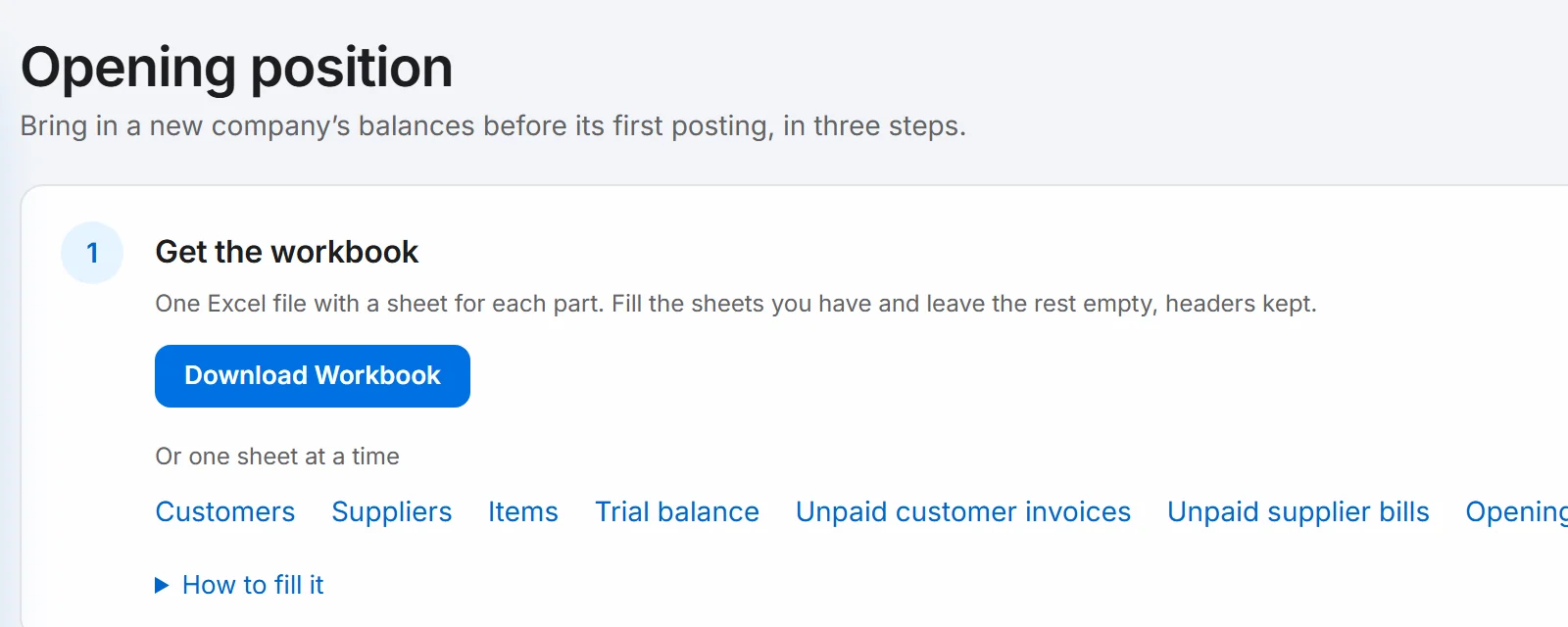
Fill in the sheets you need and leave the others empty. Keep the header row. Use this company's own account, VAT and location codes. Give new customers, suppliers and items new codes.
Set the Opening date and the Branch for the opening journal.
Add your file under Workbook or sheet files. WorkBook checks it at once and saves nothing.
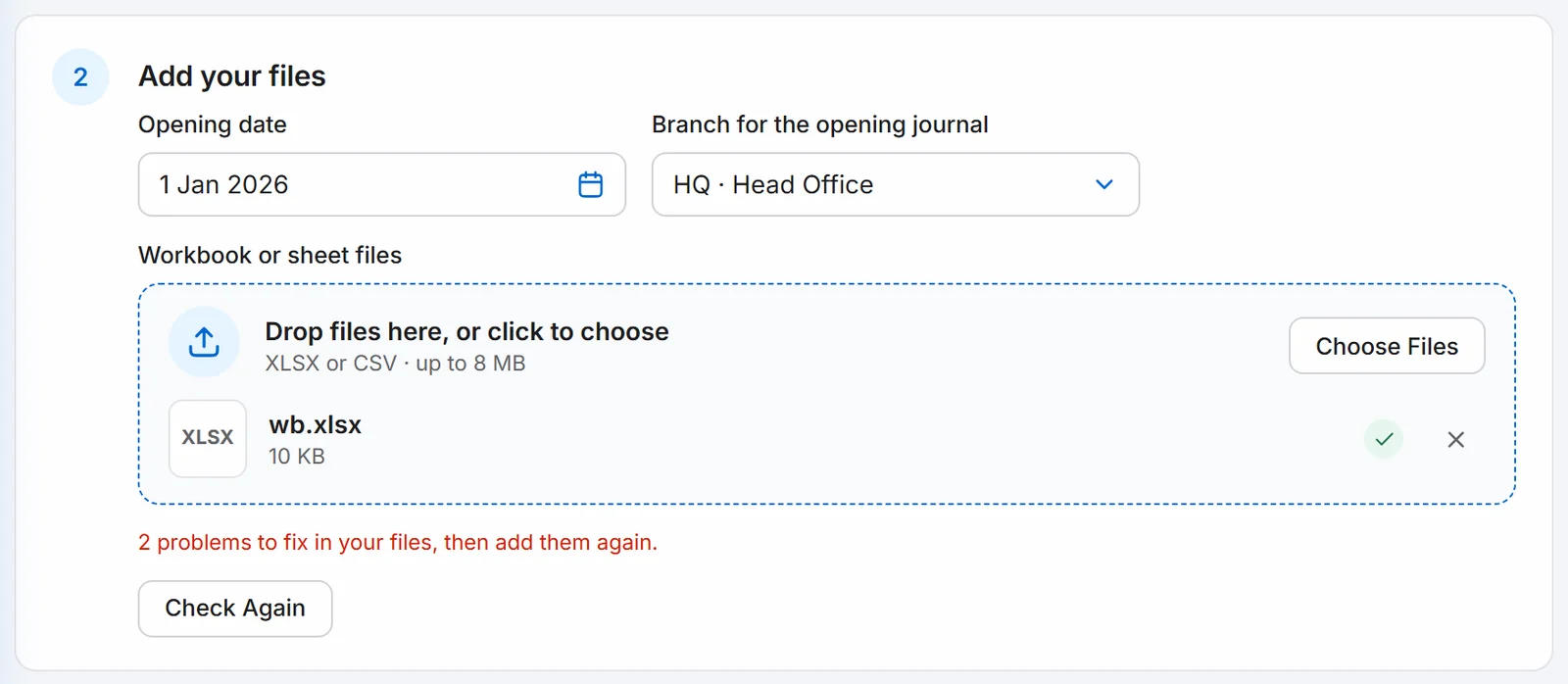
Read the result. When the check finds problems, the file loses its tick and the box turns red. Each problem lists the sheet, row and column. Fix the file, then add it again.
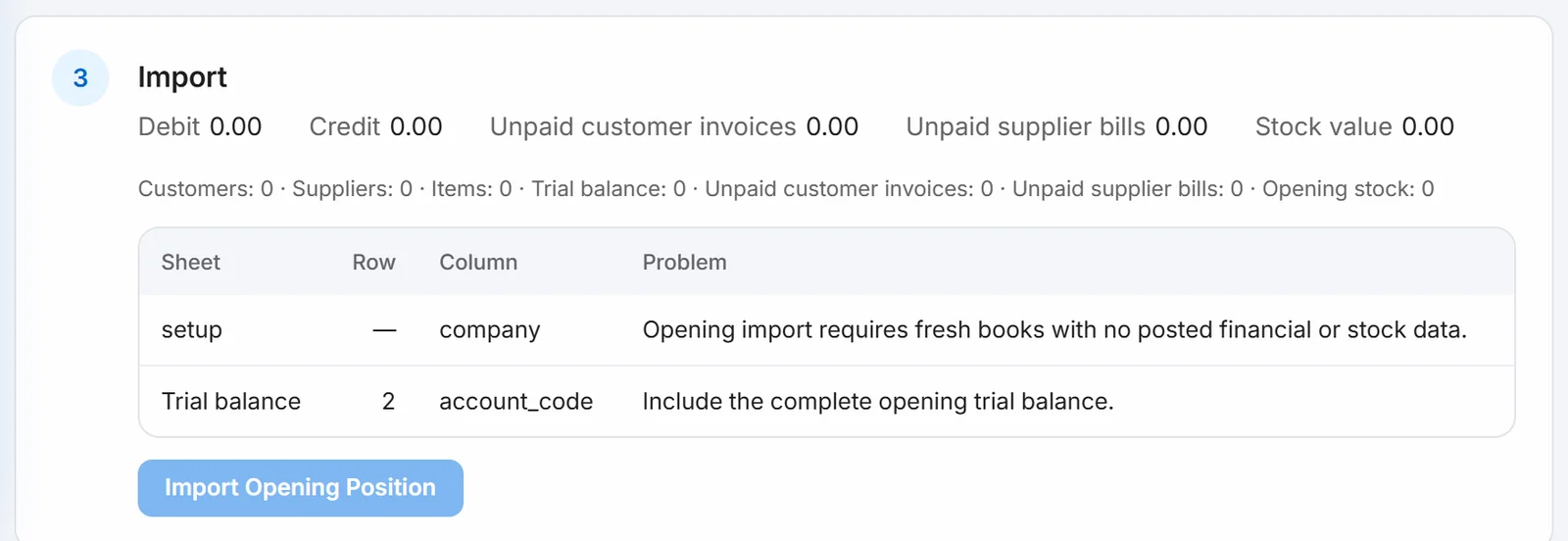
When the check passes, choose Import Opening Position and confirm.
Good to know.
- The trial balance must include receivables, payables and inventory. The customer, supplier and stock sheets must add up to those totals.
- Invoice and bill amounts are what is still unpaid, including VAT. Their own dates are kept, so statements and ageing show the original numbers.
- These are opening balances, not new sales or purchases. They do not appear in sales totals or in your VAT return.
- You can import once for a company and opening date. A file over 8 MB is refused. Excel formulas are refused: paste values.
- You can also add separate Excel or UTF-8 CSV files named after each sheet.
Related.
- Set up your companyIn Settings, check your company profile, add your logo, branches and stock locations, then review your VAT codes and chart of accounts.
- Add users and set their rolesOpen Settings, then Users and Roles, choose New User, pick a role and, if you like, one branch. A user limited to a branch works only in that branch.
- Install WorkBook on a Windows PCRun the one-click installer on a 64-bit Windows PC, open WorkBook from the desktop shortcut, and answer the setup questions to create your owner login.