 WorkBook
A purchase order is your request to a supplier. It records nothing in your accounts until the bill arrives and you post it.
Steps.
Click Purchases, then Purchase Orders, then New purchase order.
Choose the Supplier and add a line for each item, with Qty and Price. Fill in Expected date if you know it.
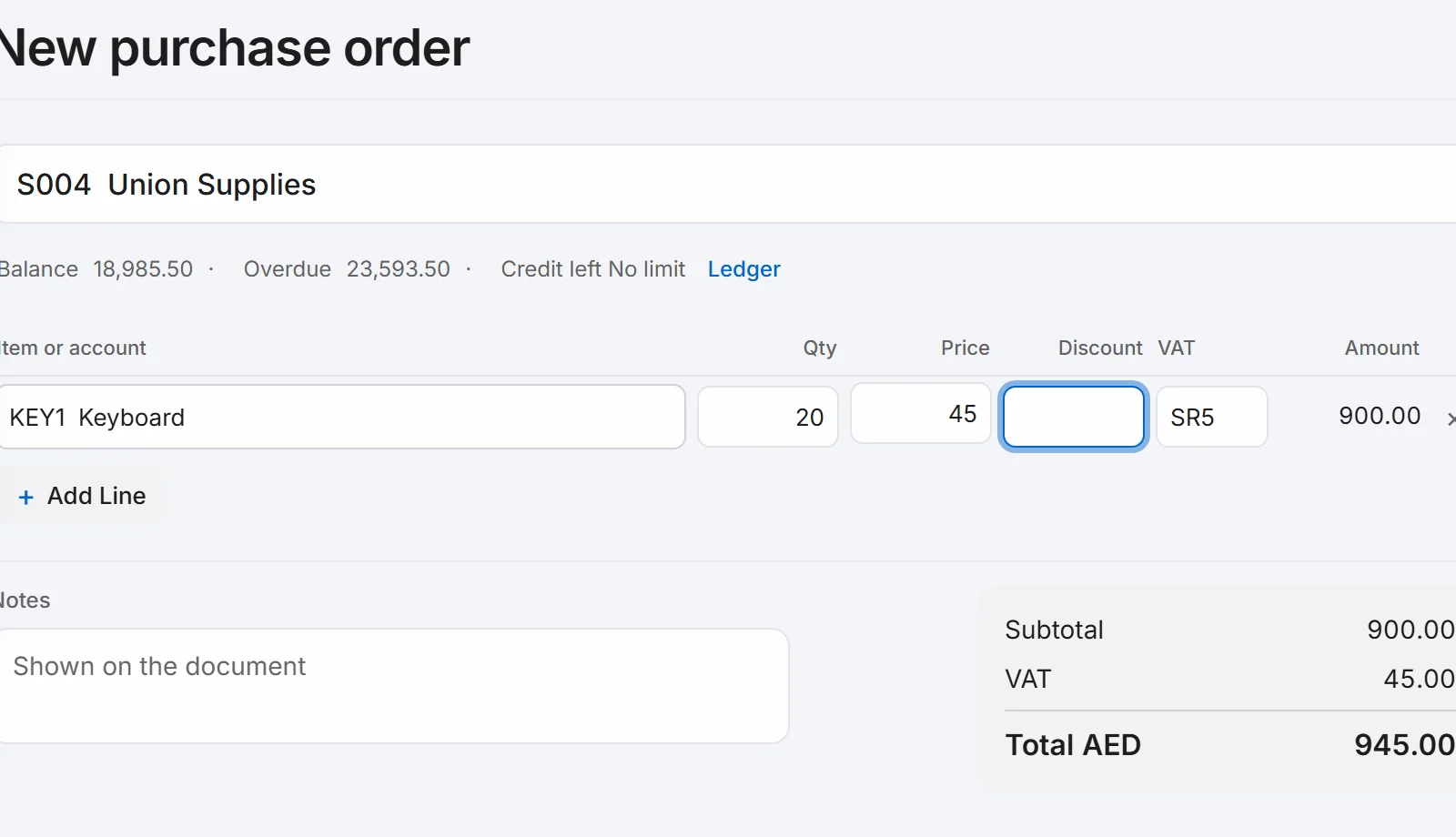
Click Save purchase order.
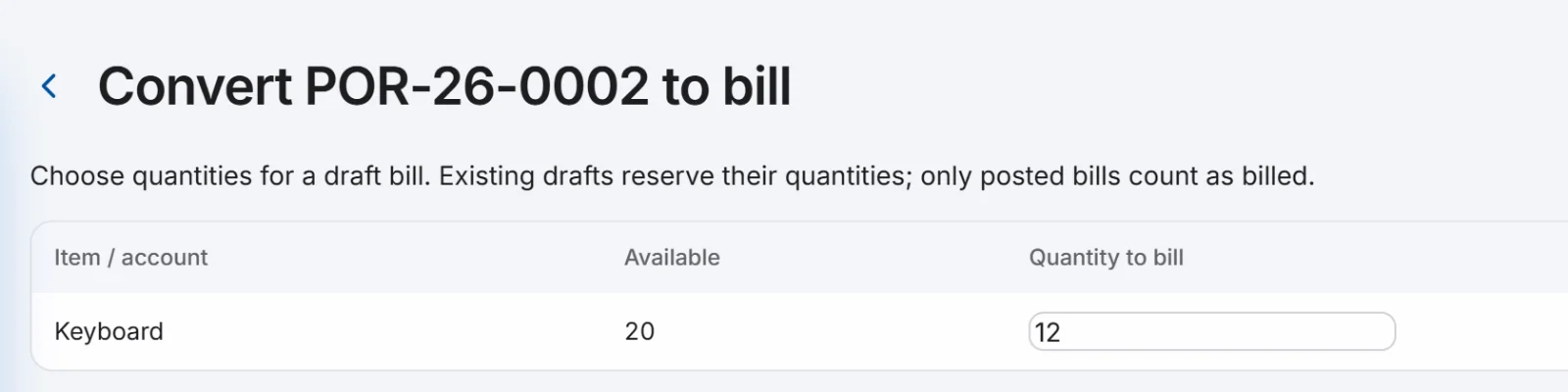
When the goods arrive, open the order from the list and click Convert to bill.

Under Quantity to bill, keep the full quantity or type what arrived. Click Create Draft Bill.
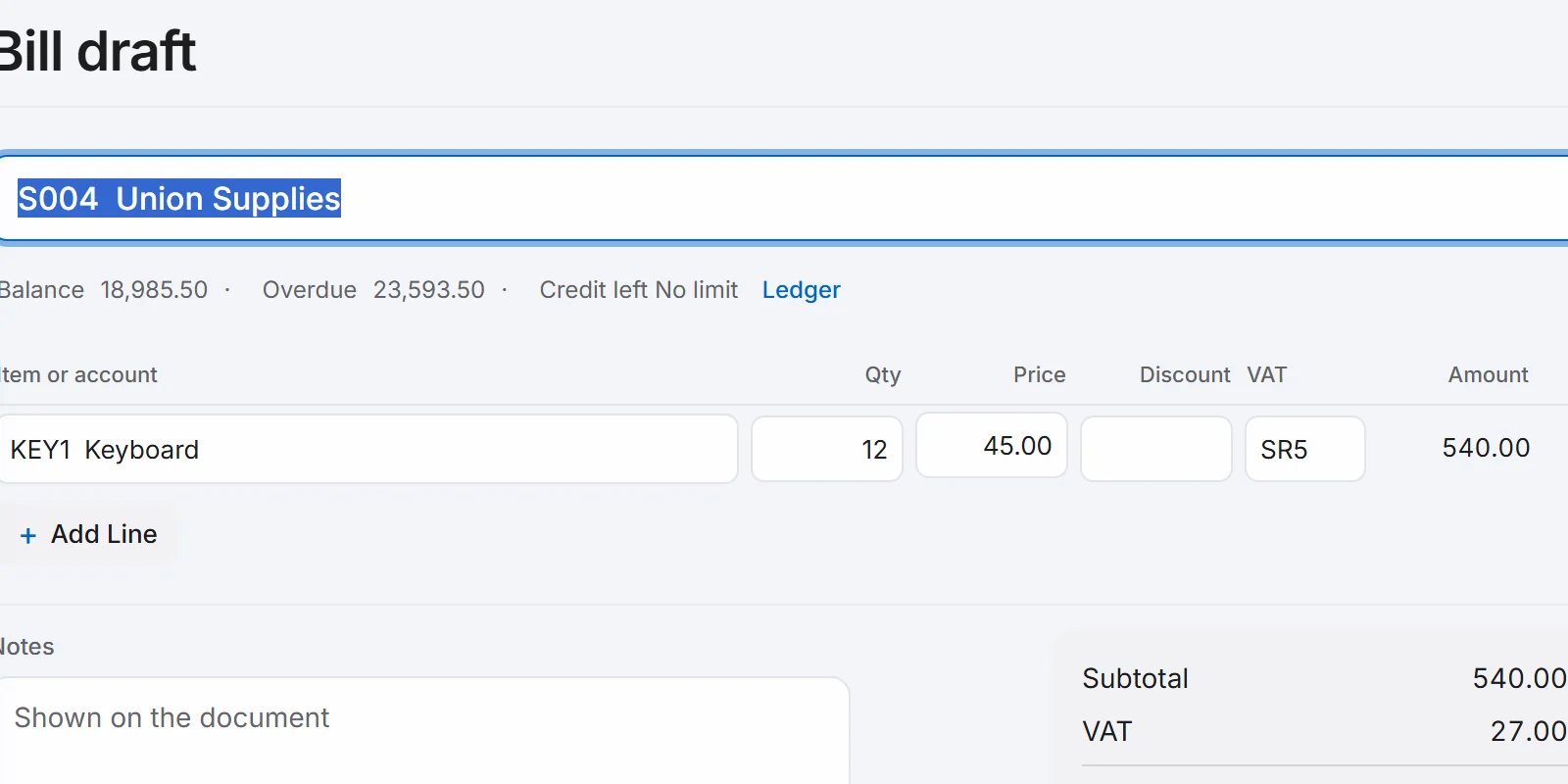
The draft bill opens with only those lines. Check it and click Post.
Good to know.
- You can convert the same order more than once. Each draft reserves its quantity, and only posted bills count as billed.
- After you post a bill for part of the order, the order shows Partly billed. Once everything is billed it shows Billed.
- The Open Purchase Orders report lists what you have ordered but not yet billed.
Related.
- Enter a supplier billOpen Purchases, then Bills, then New bill. Choose the supplier, add what you bought and click Post. The bill gets its number and shows on what you owe.
- Move stock between locationsOpen Inventory, then Stock Transfers, then New transfer. Choose where the stock leaves and where it goes, add the items and click Post.