 WorkBook
A bill is what a supplier charges you. Enter it when the goods or the invoice arrive, so you always know what you owe.
Steps.
Click Purchases, then Bills, then New bill.
Type the supplier's name in Supplier and press Enter. Their balance and what is overdue show under the name.

Type the supplier's own invoice number in Supplier invoice no., next to Supplier.

In Item or account, type what you bought and press Enter. Then enter Qty and Price. The VAT code comes from the item.
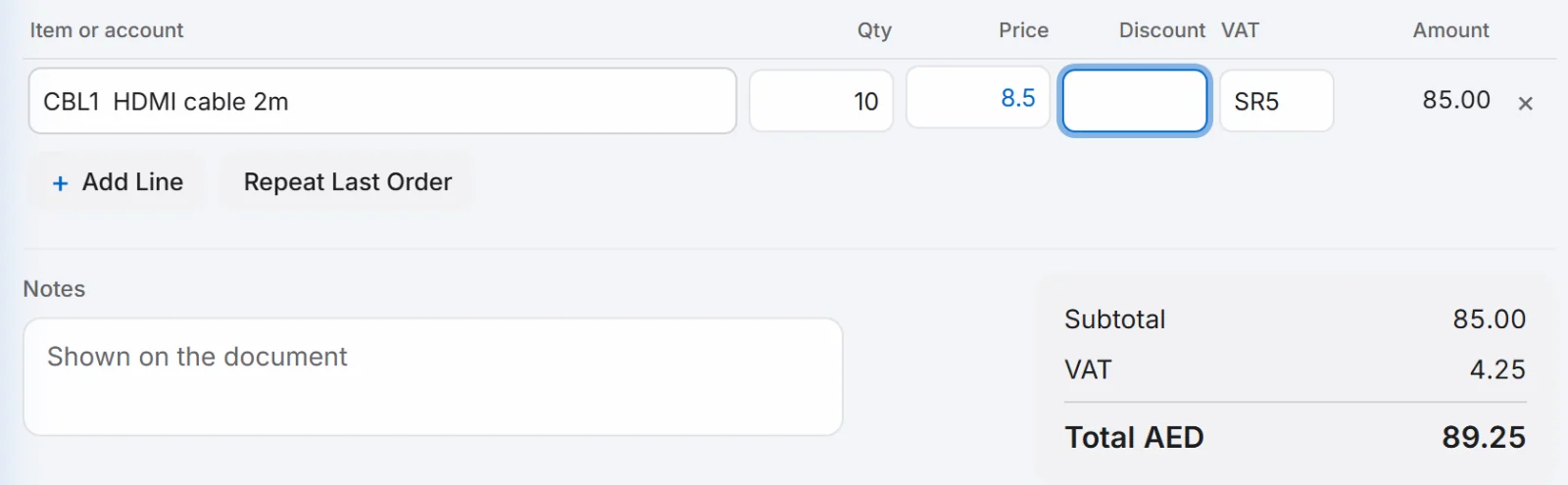
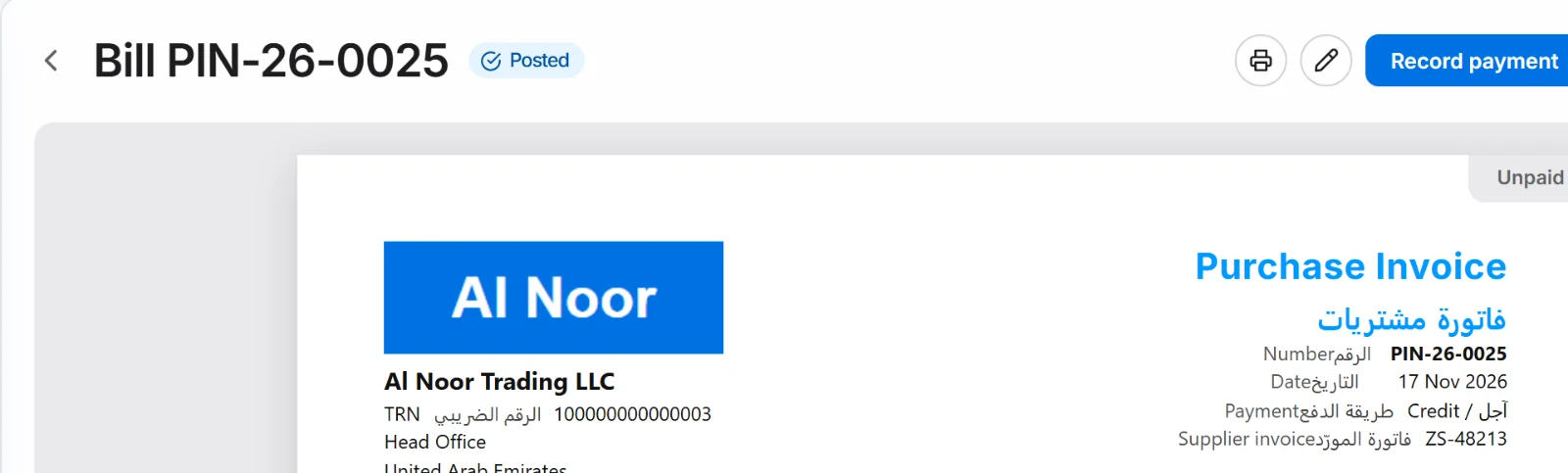
Check the date and the Total AED, then click Post. A preview of the bill opens. Close it.
Good to know.
- WorkBook numbers the bill itself. Your supplier's number prints on the bill as Supplier invoice, so you can match the two. Notes is free for anything else.
- Save Draft keeps the bill without posting it. A draft does not change what you owe.
- A bill for an item you keep in stock adds the item to stock. Choose an account instead of an item for costs such as rent.
- To pay the bill, open it and click Record payment.
Related.
- Create a purchase order and turn it into a billSave the order under Purchase Orders, then open it and click Convert to bill. Choose the quantity that arrived and post the draft bill.
- Record a payment from a customerOpen the invoice and choose Record payment. Check the amount and how it was paid, then choose Post. The invoice shows Paid.
- Buy timber by size and tiles by the boxSet Sold by to CFT (by size) for timber or Tiles (boxes) for tiles. On a bill, enter the size or the area, and WorkBook works out cubic feet or boxes.