 WorkBook
Use this when a customer pays an invoice, in cash, by bank transfer or by cheque. The payment is matched to the invoice, so the customer's balance goes down at once.
Steps.
Open Sales, then Invoices, and open the invoice that was paid.
Choose Record payment.

A new receipt opens with the customer and the amount still owed already filled in. Check Date and Amount.
Under Paid by, choose Cash, Bank or Cheque. Then choose the Cash or bank account the money went into.
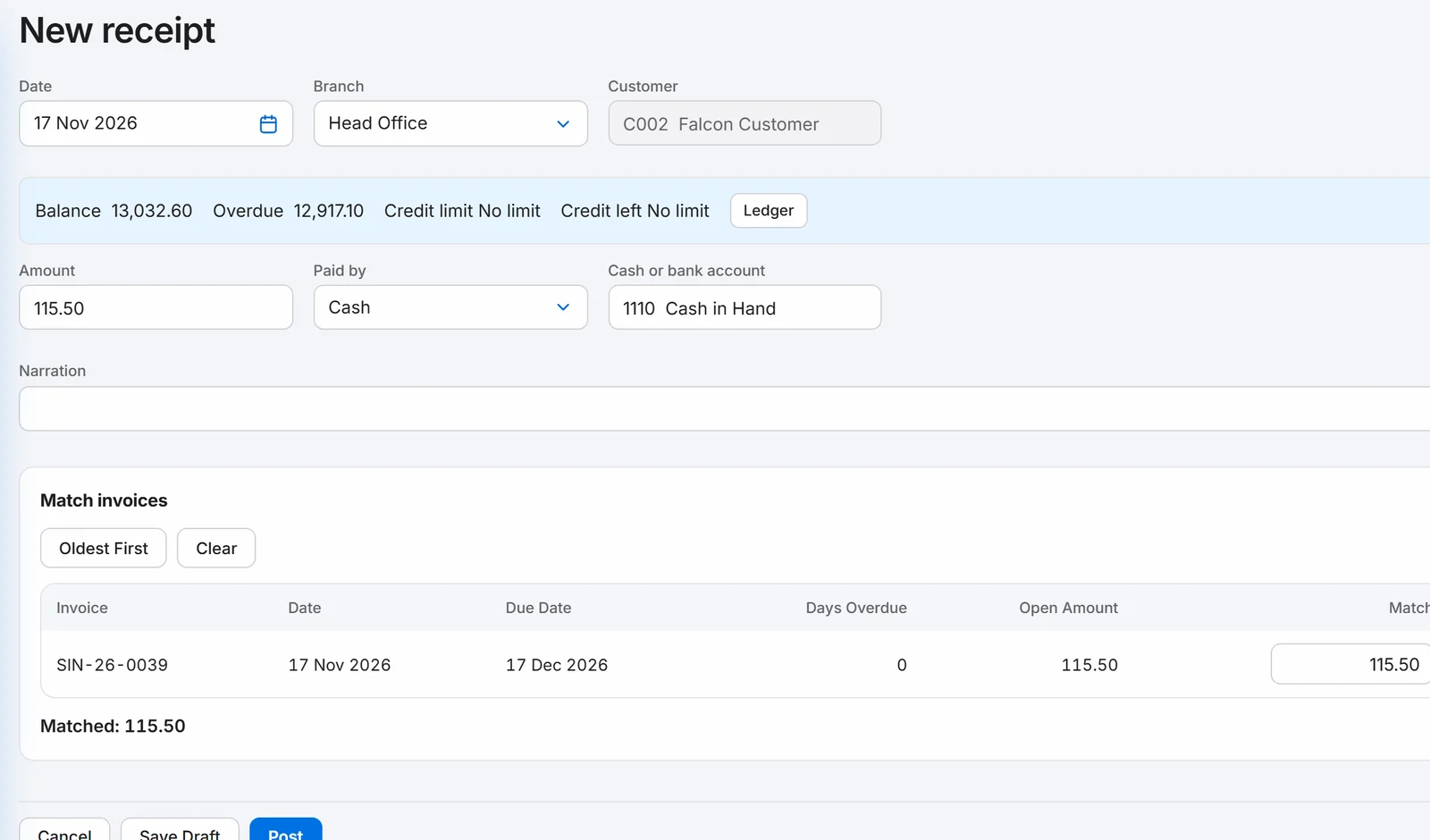
Under Match invoices, check that the invoice shows the amount in Match.
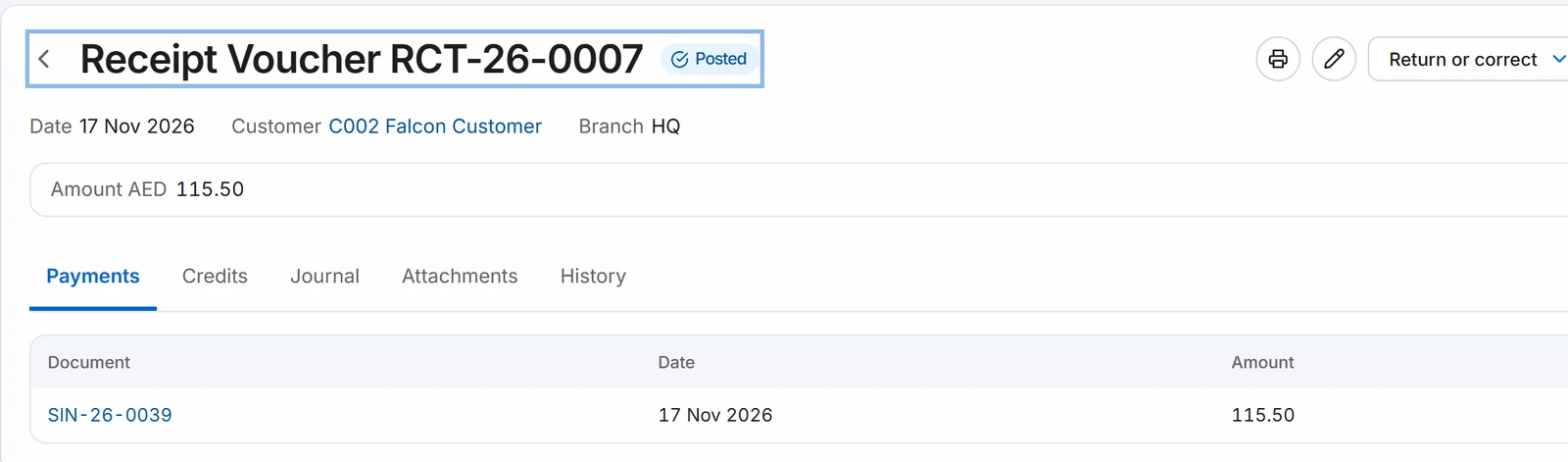
Choose Post. The receipt gets a number such as RCT-26-0007.
Good to know.
- Go back to the invoice and it shows Paid, with the receipt listed under it and Balance due at 0.00.
- Choose Save Draft to keep a receipt without posting it yet.
- You can also start from Sales, then Payments Received, then add a receipt yourself.
- If you posted it by mistake, open the receipt and use Return or correct.
Related.
- Create a quote and turn it into an invoiceOpen Sales, then Quotes, choose New quote and save it. When the customer agrees, choose Convert to invoice, check the draft and choose Post.
- Issue a credit note for returned goodsOpen the invoice, choose Return or correct, then Return / Credit. Enter the quantity returned and choose Post return to issue a tax credit note.
- Email an invoice to a customerOpen the invoice, choose Print, then the envelope. Check To, Subject and Message, then choose Send. The PDF is attached for you.