 WorkBook
A quote is the price you offer a customer before they buy. It is not a tax invoice. When the customer agrees, you turn it into an invoice in a few clicks, so nothing is typed twice.
Steps.
Open Sales, then Quotes, then choose New quote.
Type the customer's name in Customer and pick them from the list.
Under Item or account, pick the item and set Qty. Choose Add Line for more items. The price and VAT fill in for you.
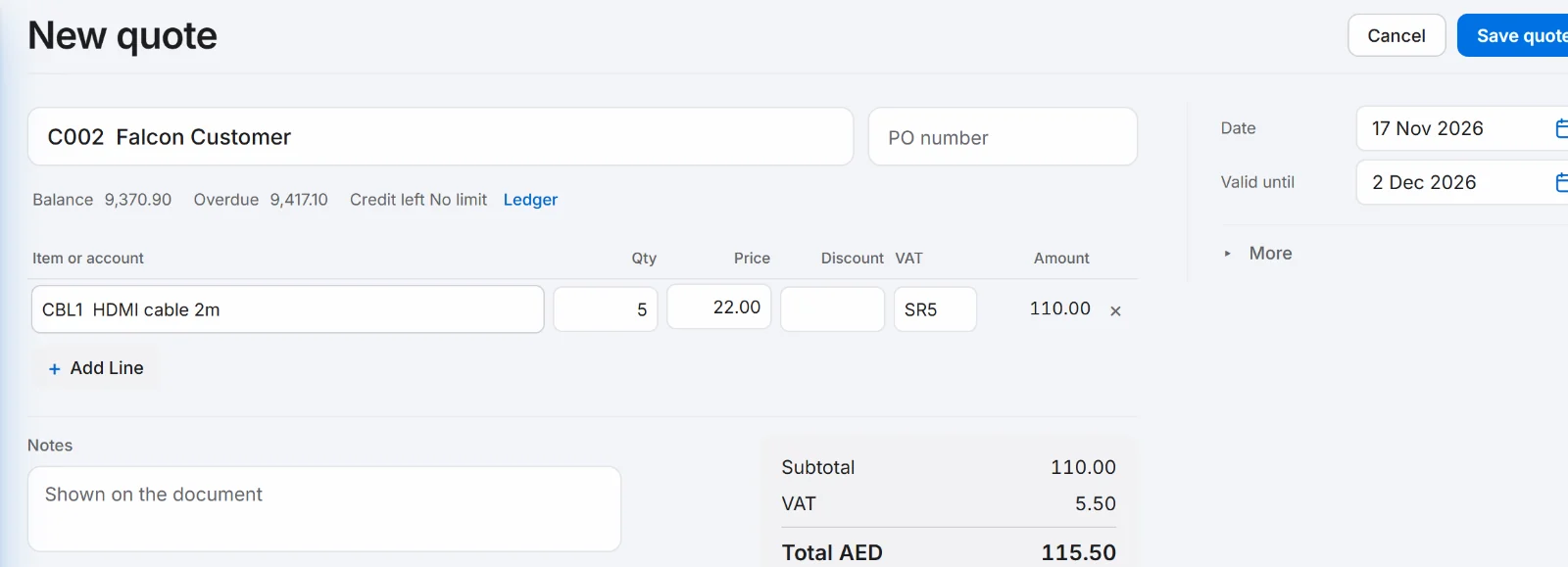
Choose Save quote. The quote opens with a number such as SQT-26-0001.
When the customer says yes, open the quote and choose Convert to invoice.

A draft invoice opens with the same customer and lines. Check it and change anything you need. Nothing is posted yet.
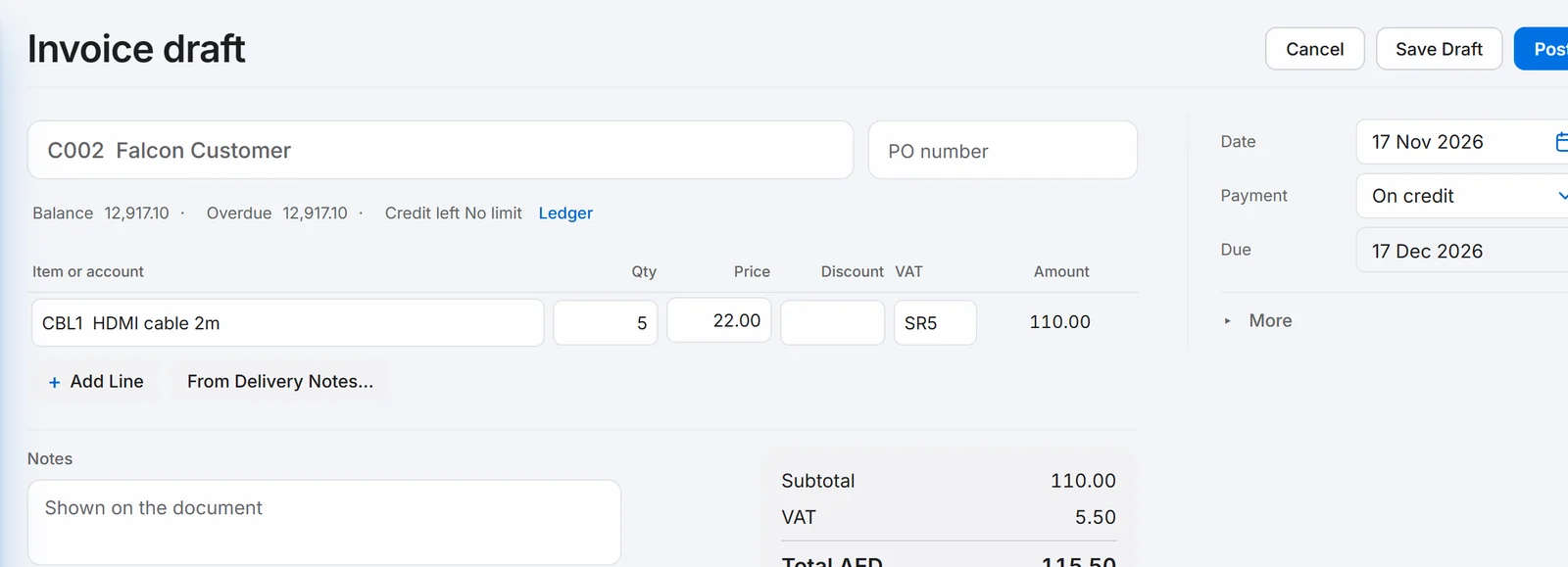
Choose Post. The invoice gets its tax invoice number, and a preview opens for printing or emailing. Close the preview with the cross at the top.

Good to know.
- The quote has a Valid until date, which starts 15 days after the quote date. You can change it on the quote.
- The posted invoice shows From quote with a link back to the quote.
- Until you choose Post, the draft is not an invoice. Choose Save Draft to finish it later.
- To change a price or quantity, edit the lines on the draft before you post.
Related.
- Record a payment from a customerOpen the invoice and choose Record payment. Check the amount and how it was paid, then choose Post. The invoice shows Paid.
- Email an invoice to a customerOpen the invoice, choose Print, then the envelope. Check To, Subject and Message, then choose Send. The PDF is attached for you.
- Make a delivery note and invoice it laterOpen Sales, then Delivery Notes, choose New Delivery Note and post it. Later, add its lines to an invoice with From Delivery Notes.