 WorkBook
Send an invoice, a quote or a credit note to your customer from the document itself. WorkBook writes the email and attaches the PDF, so you only check and send.
Before you start.
- Put the customer's email address on their record. It then fills in by itself every time.
Steps.
Open the document, for example under Sales, then Invoices.
Choose the print icon at the top right.

In the preview, choose the envelope icon at the top. The other two icons print and download.

The Email window opens. To is filled from the customer record, so check it or type another address. Change the Subject or the Message if you like.
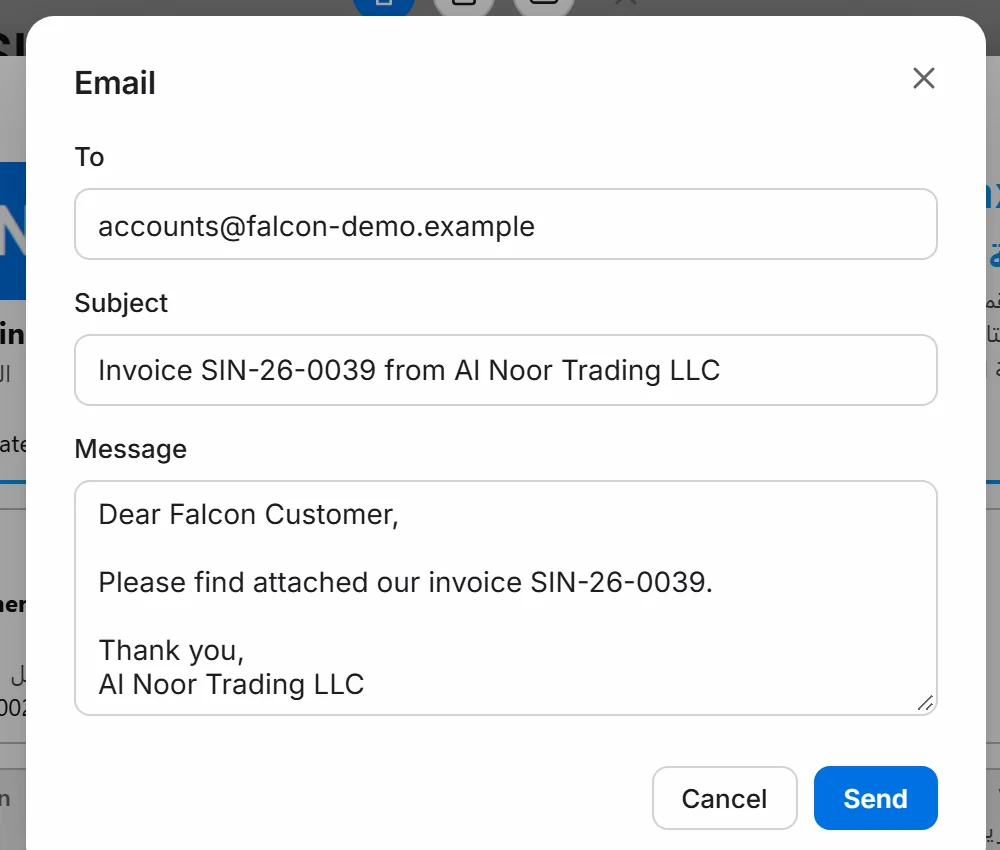
Choose Send.
Good to know.
- If the customer has no email on file, To is empty. Type the address, or add it to the customer first.
- Where the email goes out from depends on Settings, Setup, Email. Under Sending, Sent through is either WorkBook or Your own mail server.

- Quotes and credit notes email the same way.
Related.
- Create a quote and turn it into an invoiceOpen Sales, then Quotes, choose New quote and save it. When the customer agrees, choose Convert to invoice, check the draft and choose Post.
- Record a payment from a customerOpen the invoice and choose Record payment. Check the amount and how it was paid, then choose Post. The invoice shows Paid.
- Issue a credit note for returned goodsOpen the invoice, choose Return or correct, then Return / Credit. Enter the quantity returned and choose Post return to issue a tax credit note.