 WorkBook
A delivery note lists the goods you hand over, with no prices. The customer signs it, and you invoice the goods afterwards.
Before you start.
- Delivery notes must be switched on under Settings, Setup, Business Type.
Steps.
Open Sales, then Delivery Notes, then choose New Delivery Note.
Pick the Customer. Under Stock Item, pick the item and set Quantity. Choose Add Item for more. Add Notes or a Site if needed.
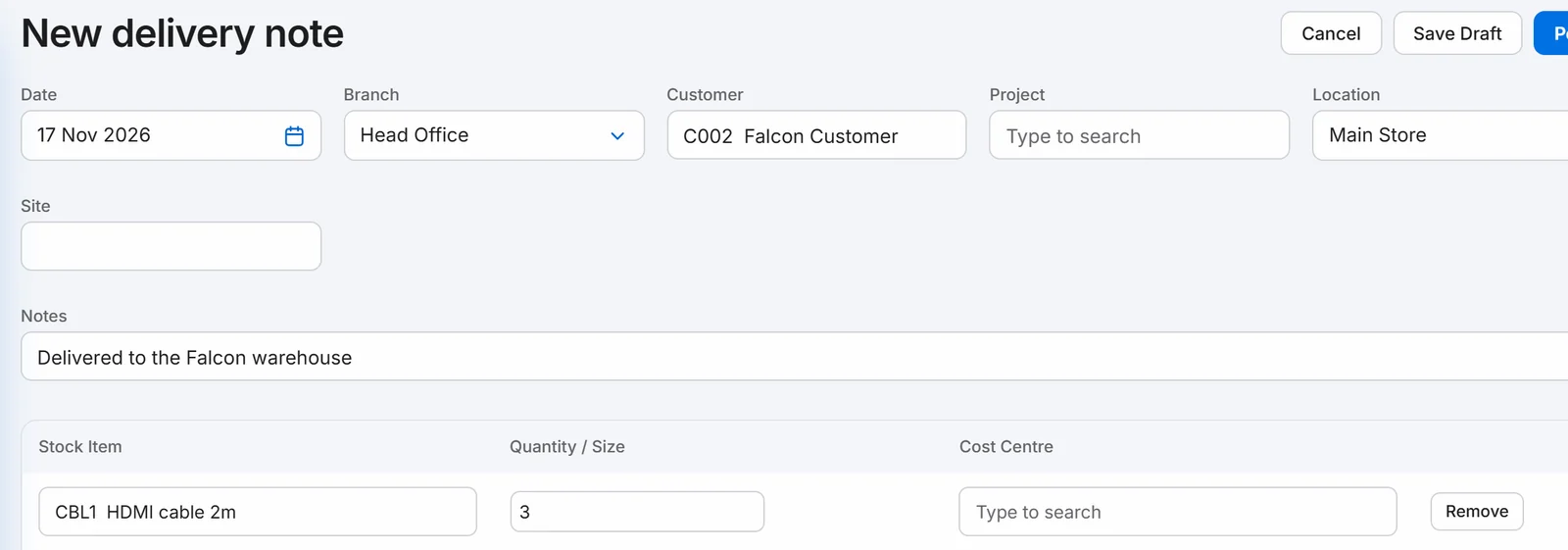
Choose Post. The delivery note gets a number such as DLN-26-0005 and the status Open.
Choose the print icon to print it. The printed note has lines for Received by, Signature and Date.
When you are ready to bill, open Sales, then Invoices, then New invoice, and pick the same customer.
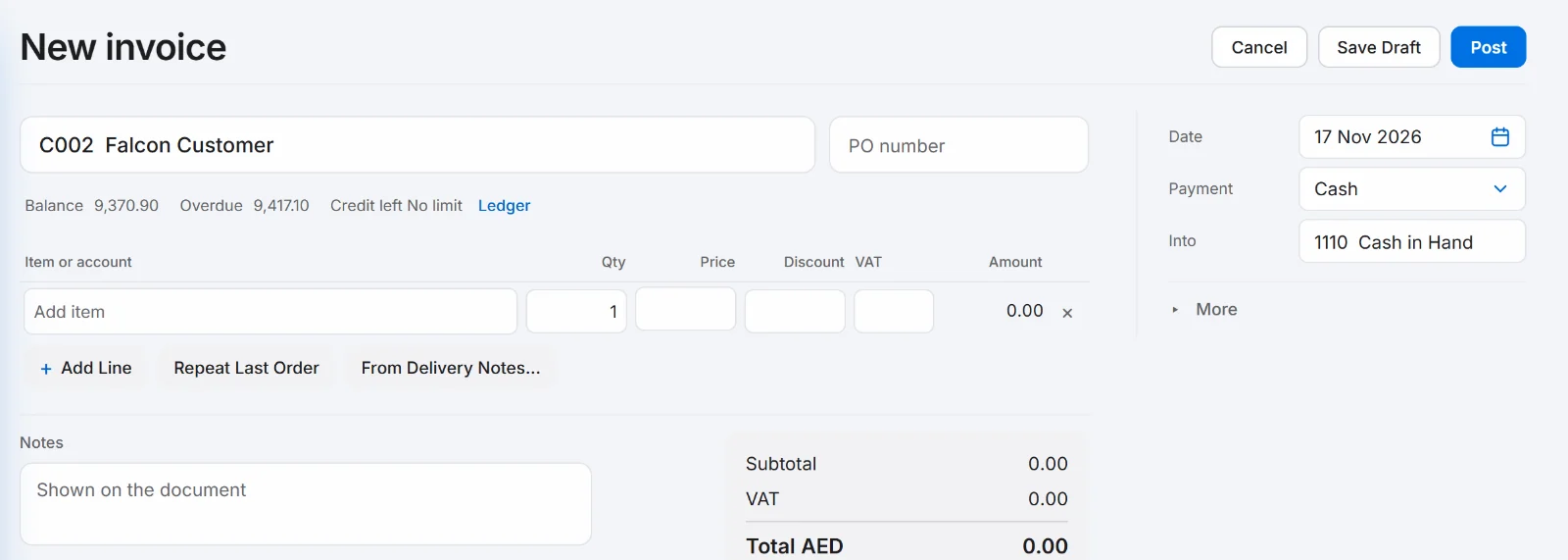
Choose From Delivery Notes…. The window lists what is left to invoice.
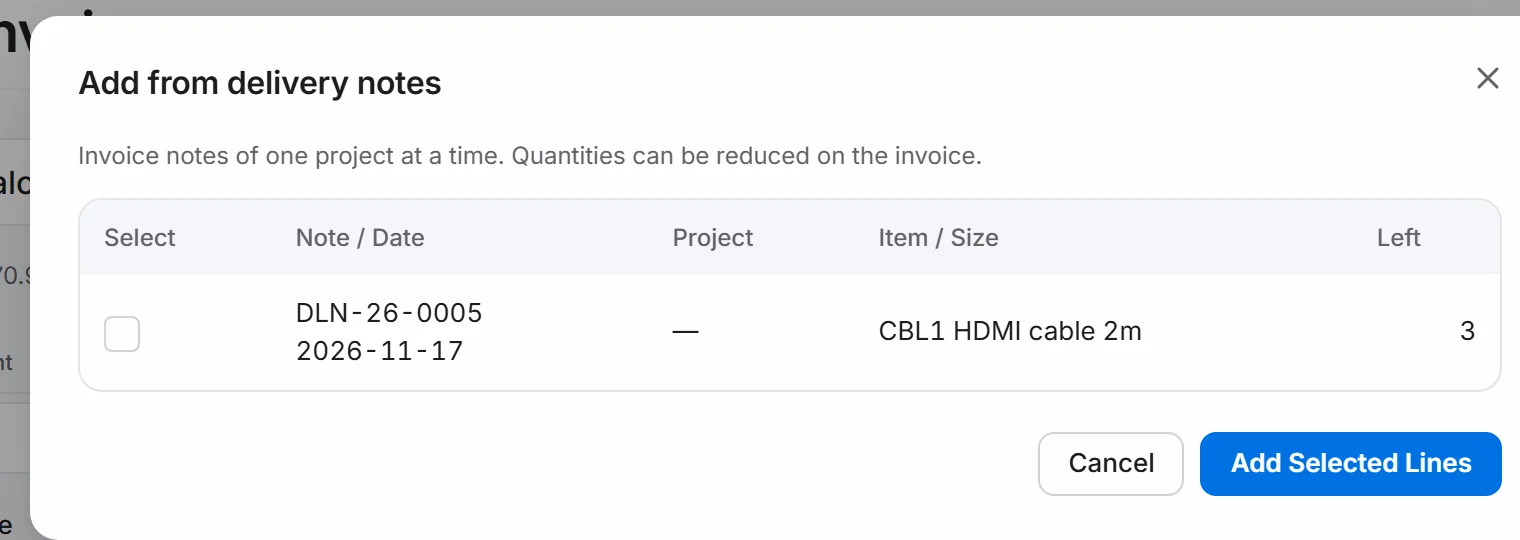
Tick the lines to bill and choose Add Selected Lines. The quantities and prices land on the invoice.
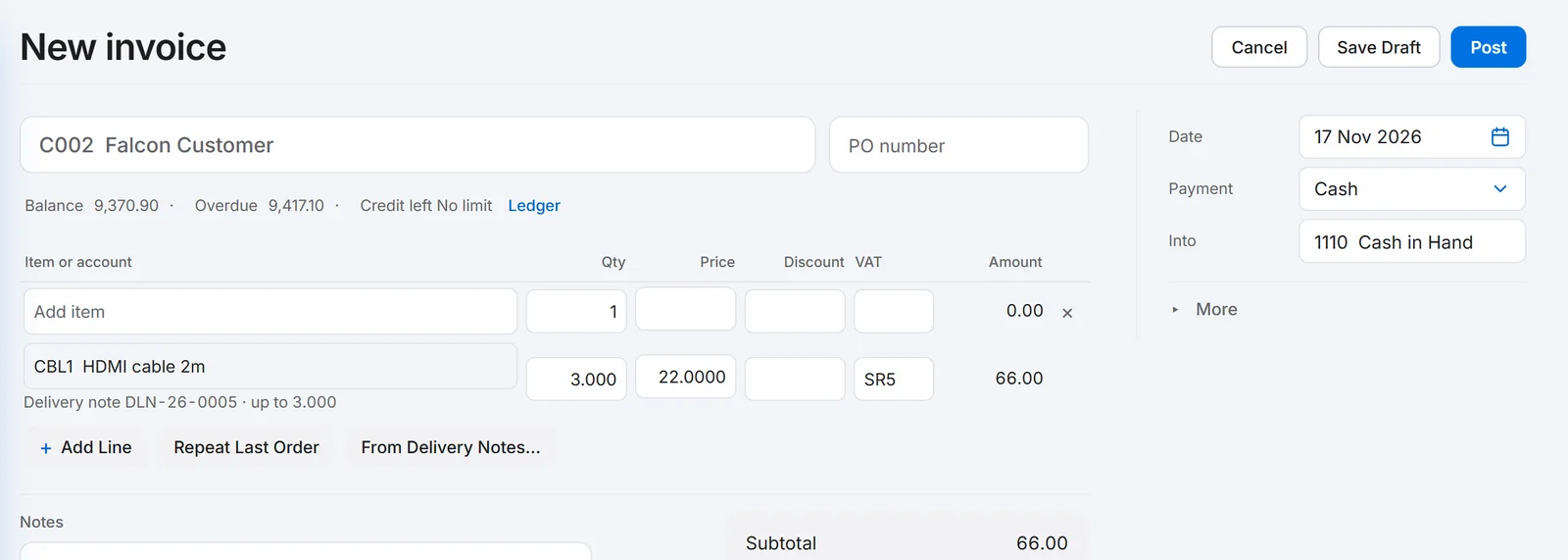
Choose Post.
Good to know.
- A note shows Open until it is invoiced, and Partly invoiced when only some of it is.
- You can lower a quantity on the invoice if you bill only part of the delivery.
- The dashboard lists delivery notes that are not invoiced yet, so none gets forgotten.
Related.
- Create a quote and turn it into an invoiceOpen Sales, then Quotes, choose New quote and save it. When the customer agrees, choose Convert to invoice, check the draft and choose Post.
- Record a payment from a customerOpen the invoice and choose Record payment. Check the amount and how it was paid, then choose Post. The invoice shows Paid.
- Issue a credit note for returned goodsOpen the invoice, choose Return or correct, then Return / Credit. Enter the quantity returned and choose Post return to issue a tax credit note.