 WorkBook
Use a stock transfer when goods move from one store to another, for example from the head office store to a showroom.
Steps.
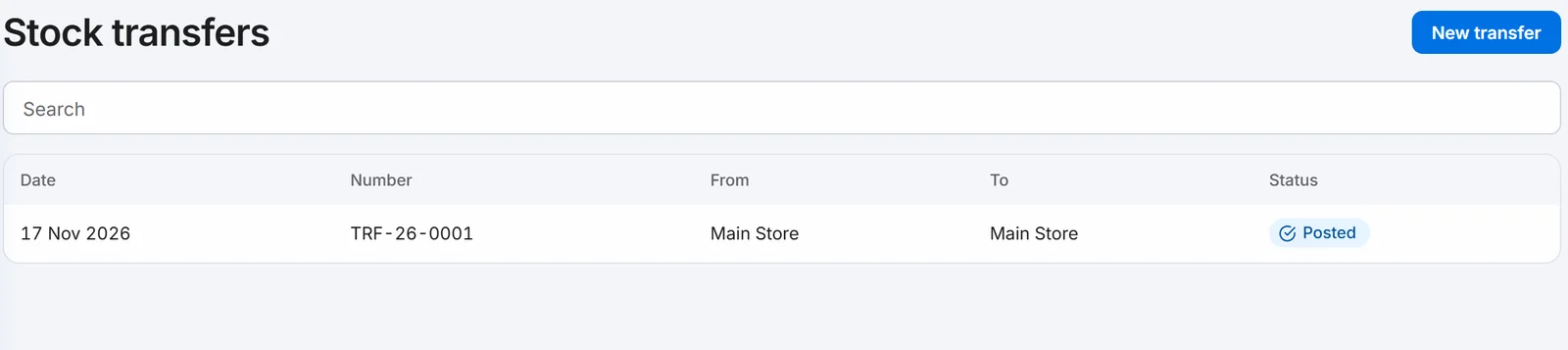
Click Inventory, then Stock Transfers, then New transfer.
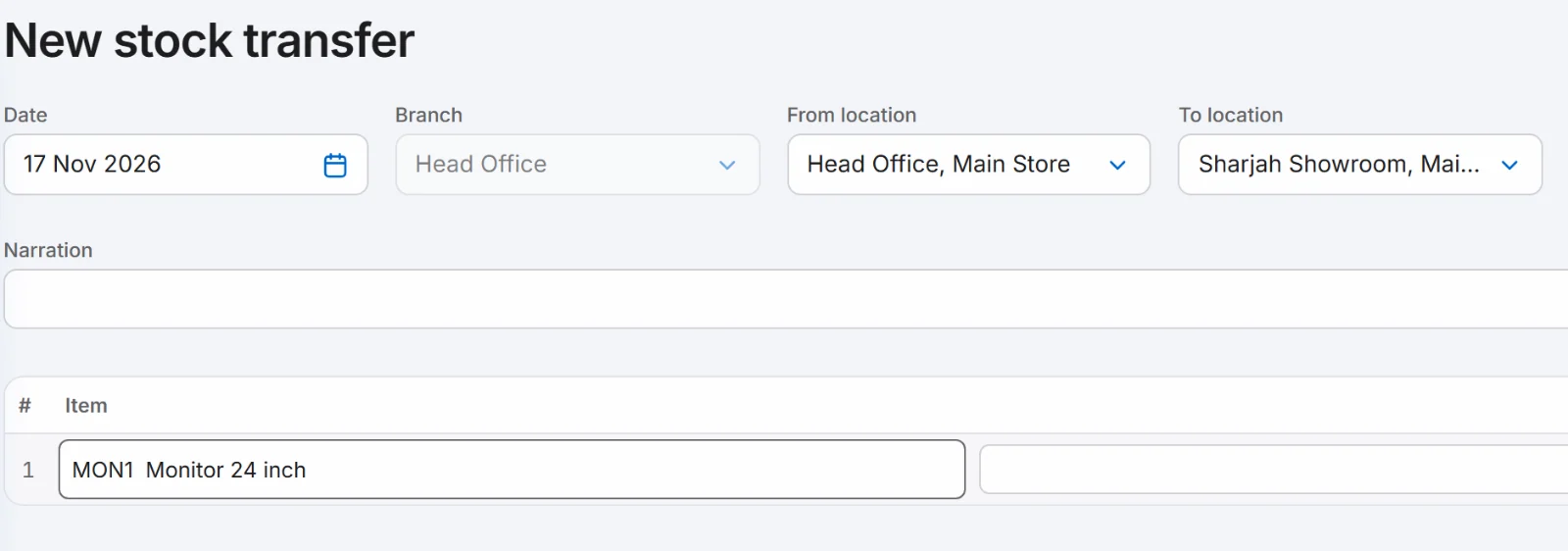
Under From location, choose where the stock leaves. Under To location, choose where it goes.
In Item, type the item and press Enter. Enter the Qty. Add a line for each item.
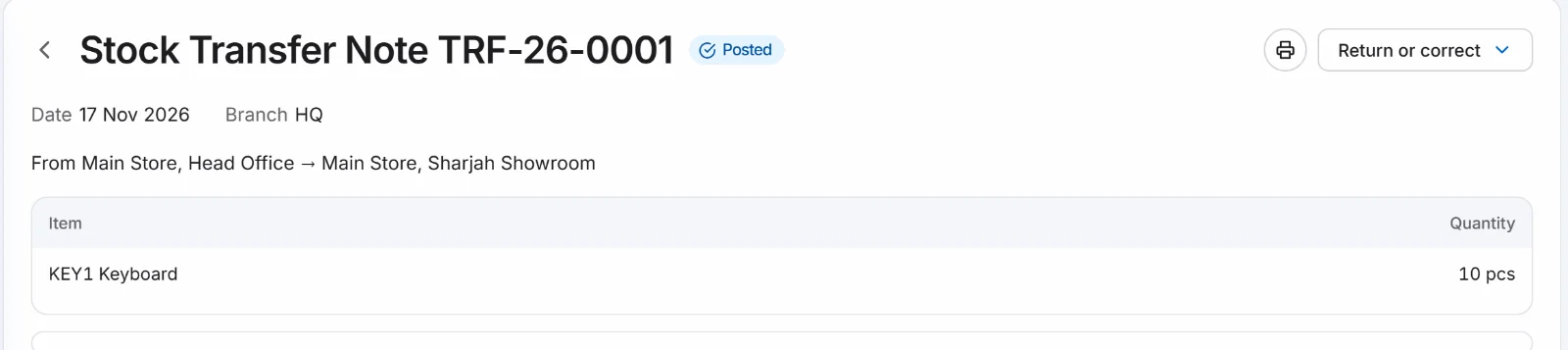
Click Post. The transfer gets a number such as TRF-26-0001.
Good to know.
- Branch is filled in from From location. You cannot change it.
- Two branches can each have a store called Main Store. The form and the posted transfer show each store with its branch, so you can tell them apart.
- To undo a posted transfer, open it and use Return or correct.
- Save Draft keeps a transfer without moving anything.
Related.
- Buy timber by size and tiles by the boxSet Sold by to CFT (by size) for timber or Tiles (boxes) for tiles. On a bill, enter the size or the area, and WorkBook works out cubic feet or boxes.
- Create a purchase order and turn it into a billSave the order under Purchase Orders, then open it and click Convert to bill. Choose the quantity that arrived and post the draft bill.
- Enter a supplier billOpen Purchases, then Bills, then New bill. Choose the supplier, add what you bought and click Post. The bill gets its number and shows on what you owe.